Help and getting started
From the download to your first folder in the cloud, and what to do when something does not look right.
Install the app
Nimbo needs a Mac with macOS 26 or newer.
- 1Download Nimbo.dmg from the download page.
- 2Open it and drag Nimbo onto the Applications folder.
- 3Open Nimbo from Applications. When macOS asks about an app downloaded from the internet, choose Open.
- 4The Nimbo cloud appears in the menu bar and the setup guide opens.
Always open Nimbo from Applications, not from inside the .dmg. Otherwise macOS runs it from a temporary copy that cannot update itself.
Sign in
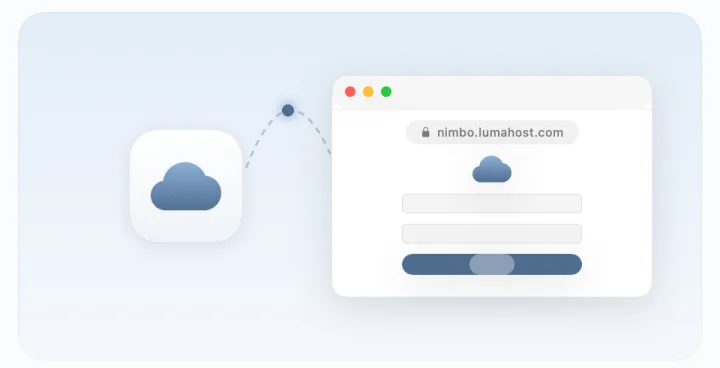
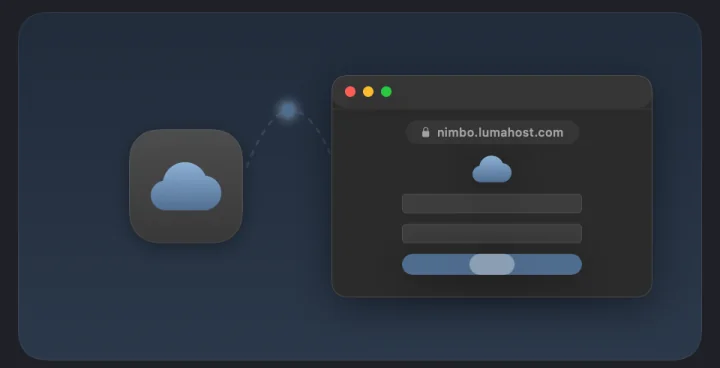
Sign-in happens in your browser, so the app never sees your password.
- 1In the guide (or in the menu, Sign In…), click Sign in with browser.
- 2Log in on the Nimbo site. If you do not have an account yet, create one there; it starts with 1 GB free.
- 3If your account has two-step sign-in, confirm with the code or a passkey.
- 4Confirm that you want to connect this Mac. The browser sends you back to the app, already signed in.
Turn on Nimbo Drive
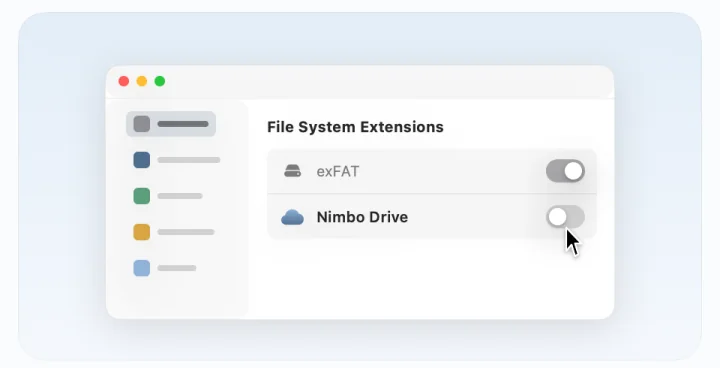
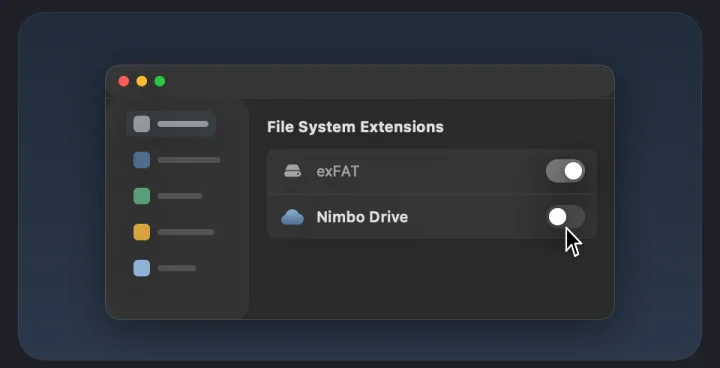
Nimbo Drive is the extension that shows the disk in the Finder. macOS asks you to turn it on once.
- 1In the guide, click Open System Settings.
- 2Go to General › Login Items & Extensions › File System Extensions.
- 3Turn on Nimbo Drive.
- 4Go back to the app. It notices the change and mounts the disk by itself.
Use the disk
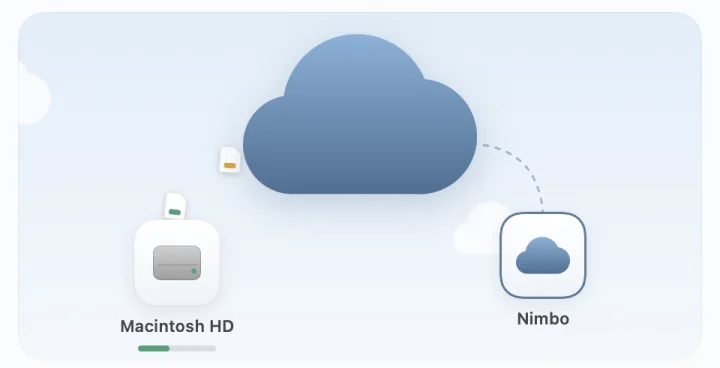
Nimbo works like any other disk. The difference is that the files live in the cloud.
- 1Find it in the Finder sidebar, under Locations, or in the Nimbo folder in your home folder (~/Nimbo). “Open in Finder” in the menu (⌘O) also takes you there.
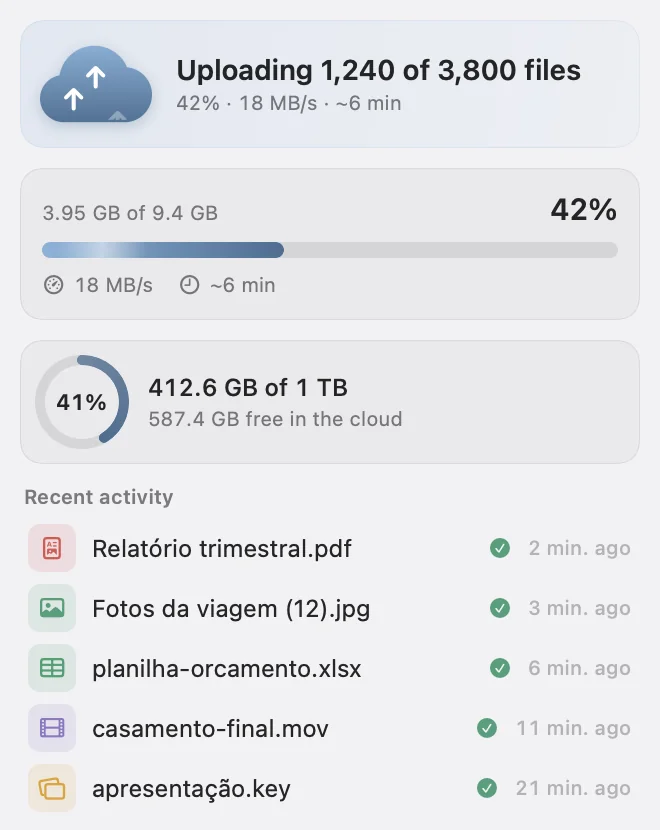
- 2Drag files and folders in. They upload in the background; the menu shows how much is left.
- 3Open files from any app, as usual. Files that are only in the cloud arrive in pieces as the app reads them.
- 4To find something, press Control-Option-O.
Moving files from your Mac to Nimbo frees the space on the Mac once they are uploaded. Copying keeps both.
Need to stop uploads for a while, on a slow or metered connection? Use Pause Uploads in the menu.
Keep folders offline
For trips or for projects you are working on, keep a copy on the Mac.
- 1In the Finder, right-click a folder or file on the Nimbo disk.
- 2Choose Keep Offline. Nimbo downloads it in the background.
- 3A green check marks what is ready. To see the icons, choose “Show Icons in the Finder…” in the menu and turn on Nimbo there.
- 4To return the space, right-click and choose Free Up Space. The files stay in the cloud.
Folders kept offline are never removed by the cache cleanup.
In Settings › Sync you can pause background downloads, limit the cache or clear it.
On the web and on your phone
Log in at nimbo.lumahost.com from any browser. On the phone, add the page to the home screen to open it like an app.
- 1Browse, search and preview videos, photos and PDFs.
- 2Upload with the Upload button or by dragging files onto the page.
- 3Restore deleted files from the Trash within 30 days.
Common problems
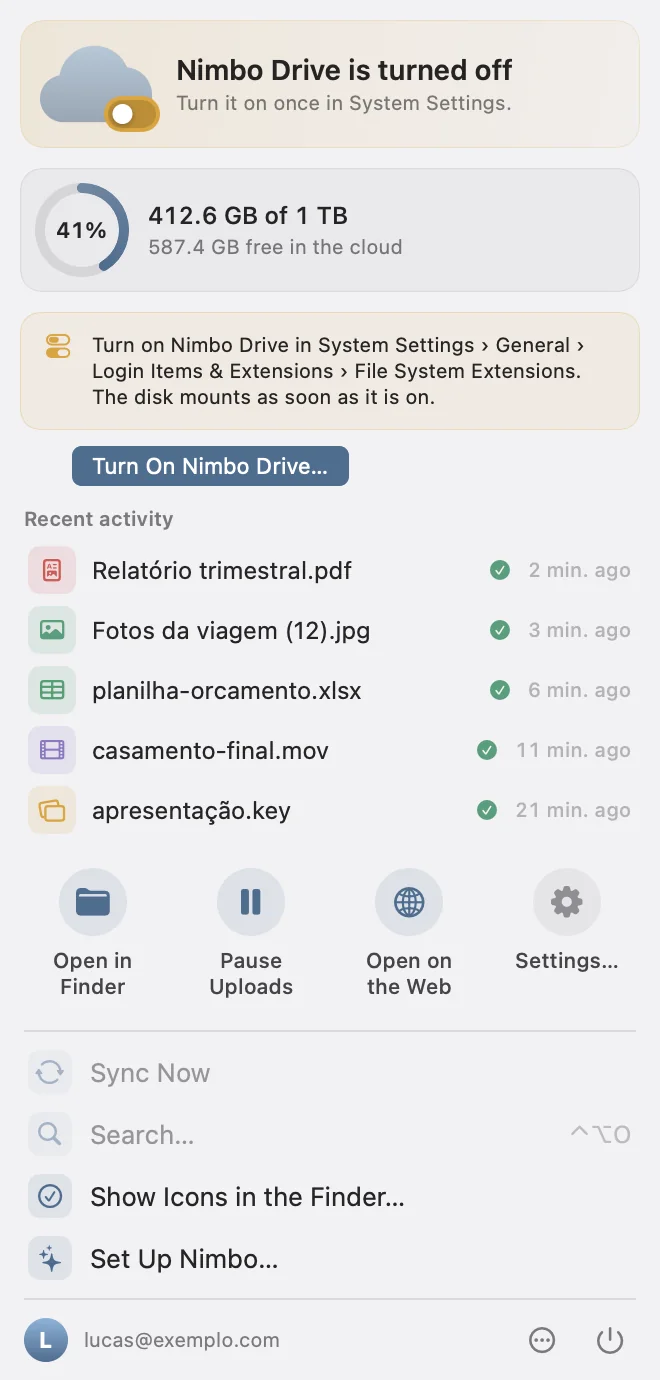
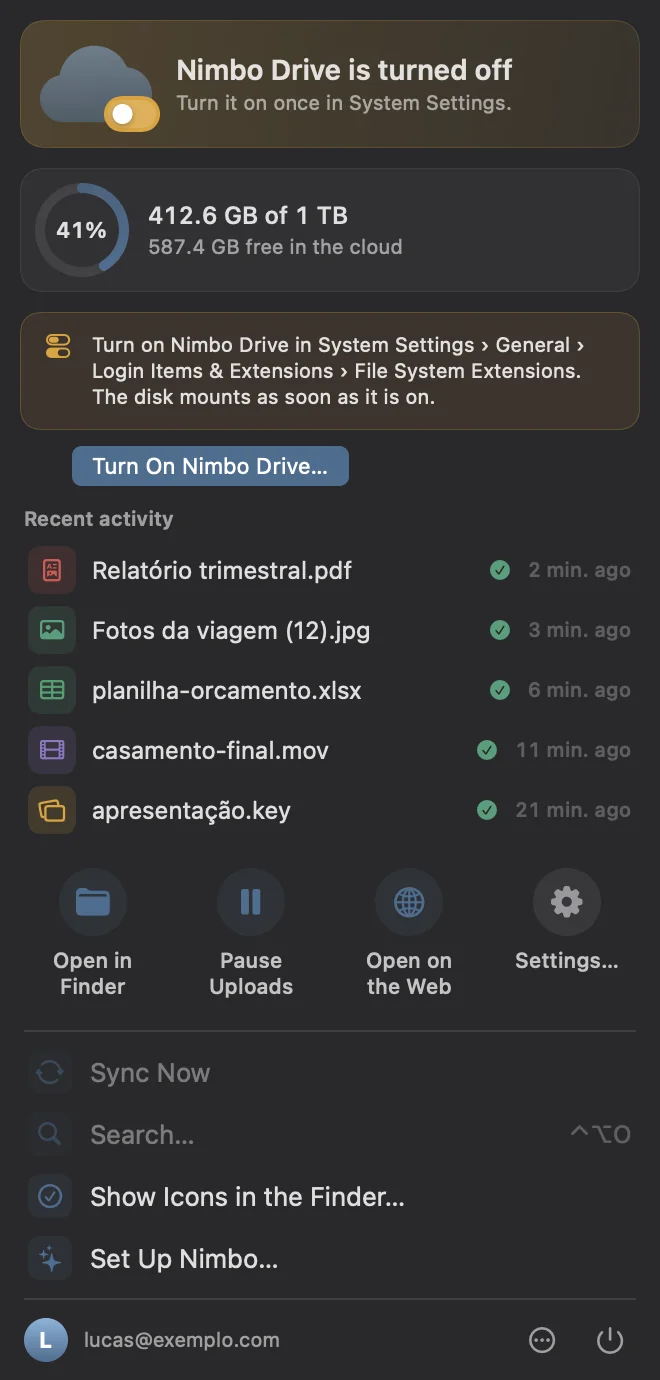
“Nimbo Drive is turned off”
macOS turned off the extension that shows the disk. This can happen after the app is moved or replaced by hand.
Click “Turn On Nimbo Drive…” in the menu, or go to System Settings › General › Login Items & Extensions › File System Extensions and turn on Nimbo Drive. The disk mounts by itself as soon as it is on.
The disk does not show up in the Finder
Check the menu: if it asks you to sign in or to turn on Nimbo Drive, do that first.
If all is well there, choose Open in Finder (⌘O) in the menu, or open the Nimbo folder in your home folder. If ~/Nimbo already had other files, the disk is at ~/Nimbo Drive; you can choose another empty folder in Settings › Disk.
An upload is not moving
See if uploads are paused in the menu. If the internet dropped, Nimbo continues by itself when it is back, from where it stopped.
If your space is full, new uploads wait until you free up space or add blocks. The menu says so.
A file named “(Conflict from …)” appeared
The same file was changed in two places before one of them could upload, for example on two Macs. Nimbo kept both versions. Open both, keep what you need and delete the other.
The app says it cannot update from where it was downloaded
Nimbo is running from the .dmg or from the Downloads folder. Quit it, drag it to Applications and open it from there.
“This Mac is almost full”
Nimbo noticed little free space and is keeping very little in the cache, so files may take a moment longer to open. Free up space on the Mac, or use Free Up Space on folders you kept offline and no longer need.
I cannot sign in with two-step sign-in
Use one of your recovery codes, or a passkey if you added one.
If you have neither, write to nimbo@lumahost.com from your account email. After confirming it is you, we can turn off two-step sign-in, and you get an email about it.
None of this helped
Write to nimbo@lumahost.com. If it is about the app, “Send Diagnostics…” in Settings › About prepares an email with the app version and state, without file names or contents.